Building a Reasoning Finance Team with Agno
This guide demonstrates how to construct a sophisticated, multi-agent financial analysis team using LangDB. The team collaborates to deliver in-depth insights on publicly traded companies by combining web research and financial data analysis.
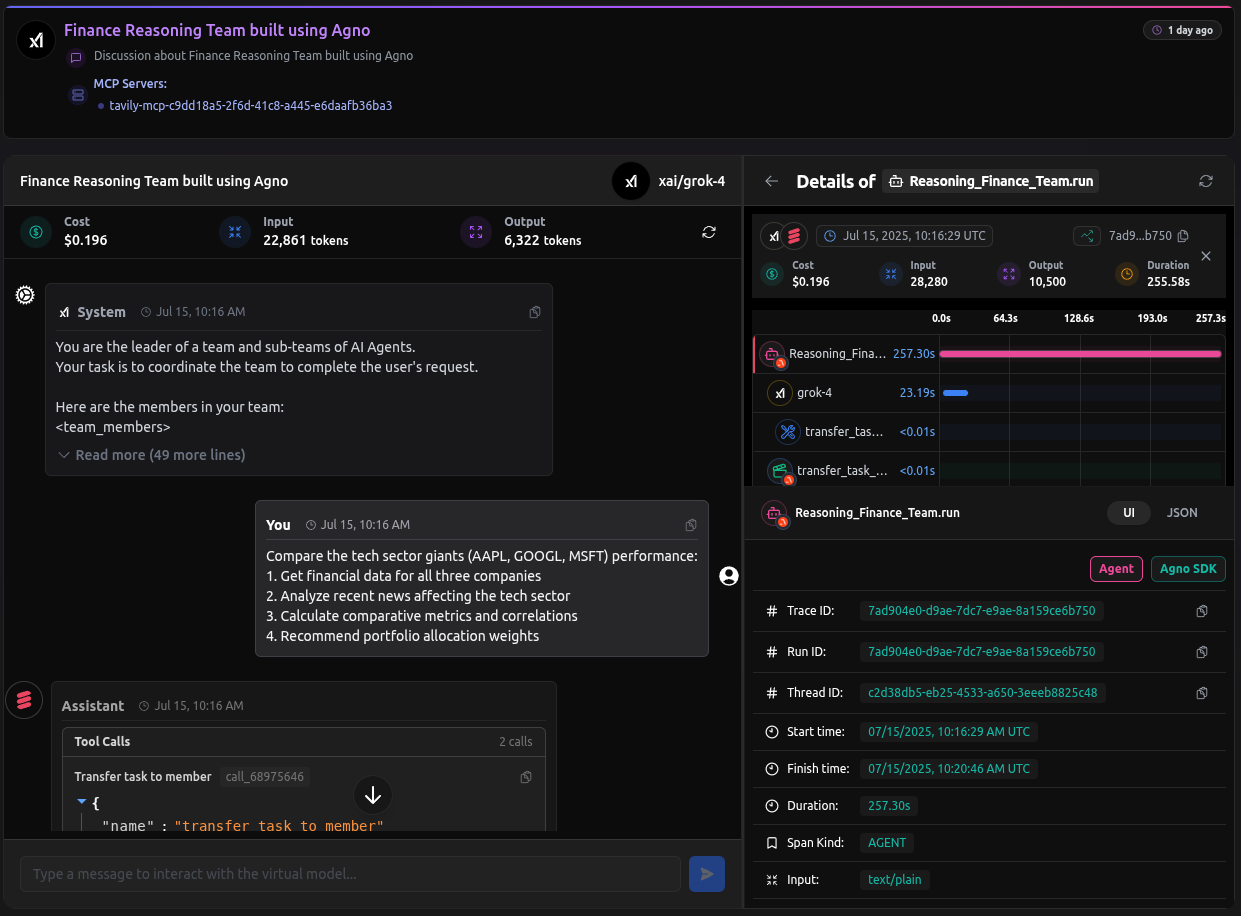
Checkout: https://app.langdb.ai/sharing/threads/73c91c58-eab7-4c6b-afe1-5ab6324f1ada
Code
- LangDB Samples: https://github.com/langdb/langdb-samples/tree/main/examples/agno/reasoning-finance-team
Overview
The system is composed of two specialist agents orchestrated by a coordinating team:
- Web Search Agent: Responsible for gathering the latest news and market sentiment from the internet.
- Finance Agent: Equipped with YFinanceTools to fetch and analyze quantitative stock data, including pricing, fundamentals, and analyst recommendations.
- Reasoning Finance Team: A coordinator that directs the two agents, synthesizes their findings, and produces a final, comprehensive report.
LangDB provides the backbone for this system, enabling seamless model access, tool integration, and full observability into each agent's actions and the team's collaborative process.
Installation
pip install "pylangdb[agno]" python-dotenv yfinance
Environment Variables
Create a .env file or export the following environment variables:
export LANGDB_API_KEY="<your_langdb_api_key>"
export LANGDB_PROJECT_ID="<your_langdb_project_id>"
Code Walkthrough
Initialize LangDB
Start by initializing LangDB to enable automatic tracing and model routing. This should be done before importing any other components from the agno library.
import os
from dotenv import load_dotenv

from pylangdb.agno import init
init()

from agno.agent import Agent
# ... other imports

load_dotenv()
Define the Web Search Agent
The web_agent is responsible for searching the web. Instead of hard-coding a search tool, we assign it a LangDB Virtual Model. This decouples the agent's logic from the specific tools it uses. The virtual model is configured in the LangDB UI to provide search capabilities, as explained in the configuration section below.
web_agent = Agent(
    name="Web Search Agent",
    role="Search the web for the information",
    model=LangDB(id="langdb/search_agent_xmf4v5jk"),
    instructions="Always include sources"
)
Define the Finance Agent
This agent is equipped with YFinanceTools to access a wide range of financial data. It is powered by Grok-4 and has specific instructions to format its output professionally.
finance_agent = Agent(
    name="Finance AI Agent",
    role="Analyse the given stock",
    model=LangDB(id="xai/grok-4"),
    tools=[YFinanceTools(
        stock_price=True,
        stock_fundamentals=True,
        analyst_recommendations=True,
        company_info=True,
        company_news=True
    )],
    instructions=[
        "Use tables to display stock prices, fundamentals (P/E, Market Cap), and recommendations.",
        "Clearly state the company name and ticker symbol.",
        "Focus on delivering actionable financial insights."
    ]
)
Define the Coordinating Team
The ReasoningFinanceTeam orchestrates the two agents. It operates in coordinate mode, allowing it to delegate tasks, synthesize information, and ensure the final output meets the specified success criteria.
reasoning_finance_team = Team(
    name="Reasoning Finance Team",
    mode="coordinate",
    model=LangDB(id="xai/grok-4"),
    members=[web_agent, finance_agent],
    instructions=[
        "Collaborate to provide comprehensive financial and investment insights",
        "Consider both fundamental analysis and market sentiment",
        "Use tables and charts to display data clearly and professionally",
        "Present findings in a structured, easy-to-follow format",
        "Only output the final consolidated analysis, not individual agent responses"
    ],
    markdown=True,
    show_members_responses=True,
    success_criteria="The team has provided a complete financial analysis with data, visualizations, risk assessment, and actionable investment recommendations supported by quantitative analysis and market research."
)
Configuring Virtual Models and Tools
To empower the web_agent with live web search capabilities without hard-coding tools, we configure a Virtual Model in LangDB. This model is backed by a Virtual MCP Server that provides the actual search functionality.
Create a Virtual MCP Server
First, create a dedicated MCP server for the search tool.
- In the LangDB UI, navigate to Projects → MCP Servers.
- Click + New Virtual MCP Server and configure it:
- Name:
web-search-mcp - Underlying MCP: Select Tavily Search.
- Note: The Tavily MCP requires an API key. Ensure you have added your
TAVILY_API_KEYto your LangDB account secrets for the tool to function.
- Name:
Create and Configure the Virtual Model
Next, create a virtual model and attach the MCP you just made.
- Navigate to Models → + New Virtual Model.
- Give it a name (e.g.,
search-agent). - In the Tools section, click + Attach MCP Server and select the
web-search-mcpyou created. - Save the model and copy its identifier (e.g.,
langdb/search-agent_xxxxxx). - Use this identifier as the
modelin yourweb_agentdefinition.
Running the Team
To run the team, simply call the print_response method with a detailed prompt. The team will autonomously delegate tasks to the appropriate agents and generate a consolidated response.
reasoning_finance_team.print_response(
    """Compare the tech sector giants (AAPL, GOOGL, MSFT) performance:\n    1. Get financial data for all three companies\n    2. Analyze recent news affecting the tech sector\n    3. Calculate comparative metrics and correlations\n    4. Recommend portfolio allocation weights"""
)
Full Trace
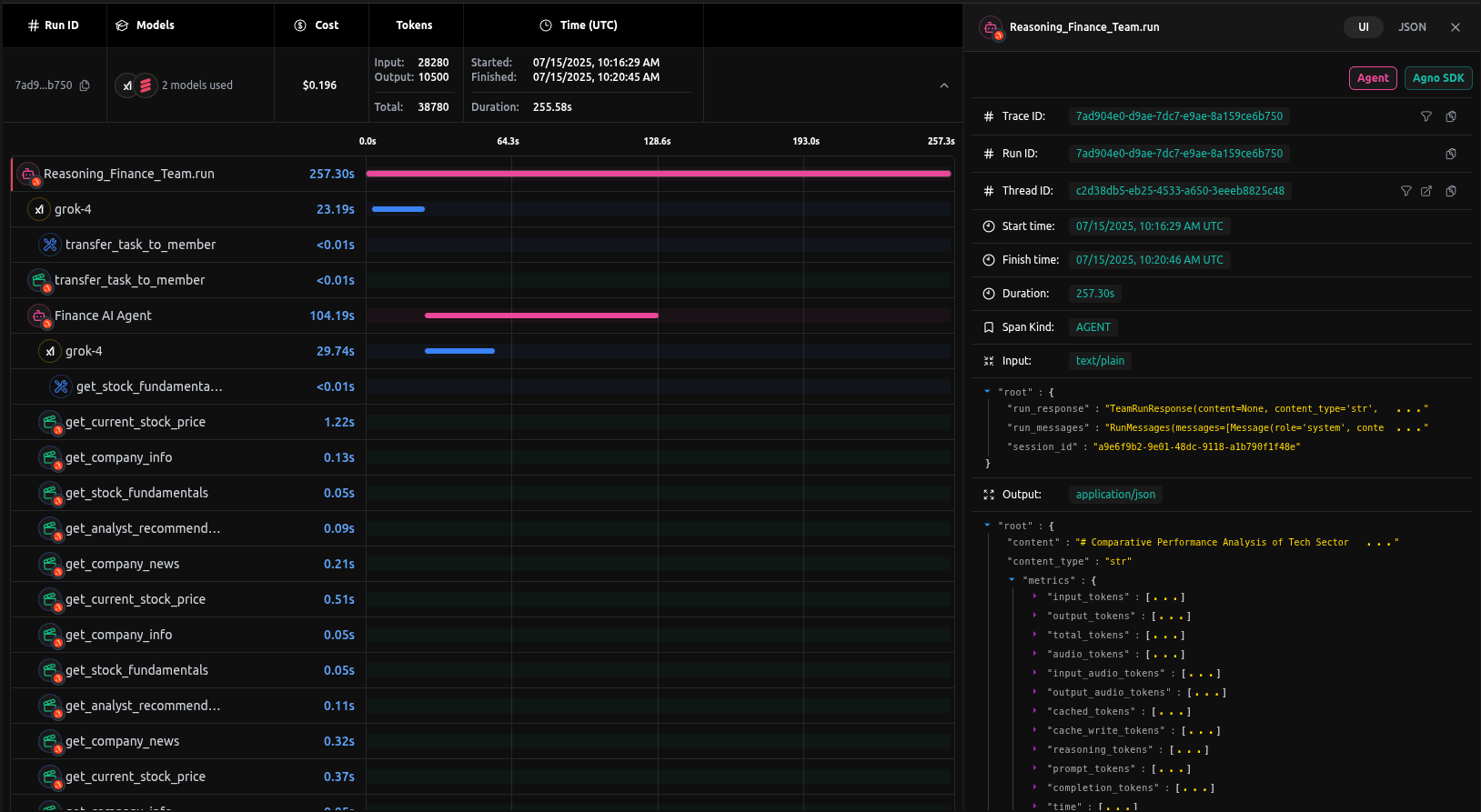
Every execution is captured in LangDB, providing a complete trace of the agno team's operations. This includes the initial prompt, each agent's individual contributions, the tools they used, and the final synthesized output.
Checkout: https://app.langdb.ai/sharing/threads/73c91c58-eab7-4c6b-afe1-5ab6324f1ada for full conversation